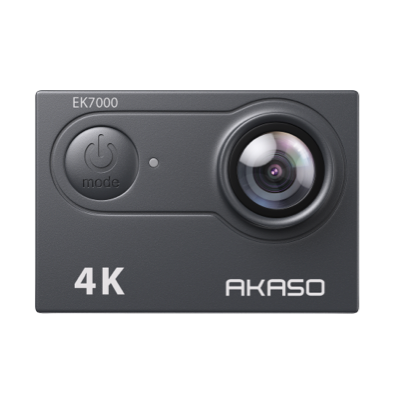














Below you'll find everything you need for this product, including manuals, App, FAQs and video tutorials.


The reason why your action camera generates multiple files when shooting a video may be due to the following reason:
Our camera operating systems limit the size of single files: SD cards formatted with the FAT32 file system only support a maximum of 4GB for a single file. Therefore, the action camera needs to split the recorded video into multiple files to avoid exceeding this limit.
1) if you turn off the loop recording, the videos are recorded with a resolution of 4K or 2.7K, 1080P, and 720P will be saved every 9 minutes, 25 minutes, and 37 minutes respectively till the SD card is full.
2) If the loop recording function turns on, you can do it with the resolution of 1080P or 720P and 10 minutes is one video. New videos will also cover the existing ones when the SD card is full.
To use the camera to take a record, you first need to insert a micro SD card in the camera, please use brand name memory cards that meet these requirements:
• Class 10 or UHS-I rating
• Capacity up to 32GB, The bigger memory may affect the compatibility with the camera.
Note:
1. Please format the microSD card first in this camera before using it. To keep your microSD card in good condition, reformat it regularly. Reformatting erases all of your content, so be sure to offload your photos and videos first.
2. FAT32 format microSD card stops recording when the storage of each file is over 4GB and starts to record again on a new file.
To keep your microSD card in good condition, reformat it regularly. Reformatting erases all of your content, so be sure to offload your photos and videos first.
1. Turn on the camera.
2. Press the Mode button four times, then the Shutter button to enter Camera Setting.
3. Press the UP or Down button to locate the ‘Format’ option.
4. Press the Shutter button, and the screen shows ‘No/Yes.’
5. Press the Down button and then the Shutter button. The screen shows ‘Waiting’ and then ‘Completed’. Then you format your microSD card successfully
Please download and install the AKASO GO app on the App Store or Google Play first. The AKASO GO app lets you control your camera remotely using a smartphone. Features include camera control, live preview, playback, download, and settings.
1. Turn on the camera, then press the Down button to turn on WiFi.
2. Turn on the WiFi connection of your mobile device, and connect to the WiFi SSID ‘iCam-AKASO’. Enter the password: 1234567890.
3. Open AKASO GO App, tap “+” icon on the upper right corner. Add “EK7000” and click the “Live Preview”.
4. Your camera will be connected to the AKASO GO App. images recorded by the camera will be real-time displayed on a mobile phone. You can operate it via related icons related to the software or set function parameters of the camera.
Note: Press the Down button if you want to turn off the WiFi